Make Your Own STORM II-Inspired AI Crowd Dance Video
Bring your own lead and ensemble into the STORM II dance scene. A reference clip guides the performance and camera pull-back while your images give the dancers a new identity.
Create AI Crowd Dance Video Now✓ A new lead character✓ A matching supporting cast✓ Reference choreography and camera movement✓ Made for Reels & TikTok
Explore More STORM II Dance Effects
Open a full-size preview, then select an effect to make a dance video with your character.
Turn a Crowd Dance into Your Own Performance
Begin with one dance video and two character images. The clip provides the performance and camera movement; the images define who takes the lead and who fills the supporting roles.
Step 1Open the Video Editor
Choose the Performance and Cast
- Pick a short group-dance clip with the choreography, framing, edits and camera reveal you want to follow.
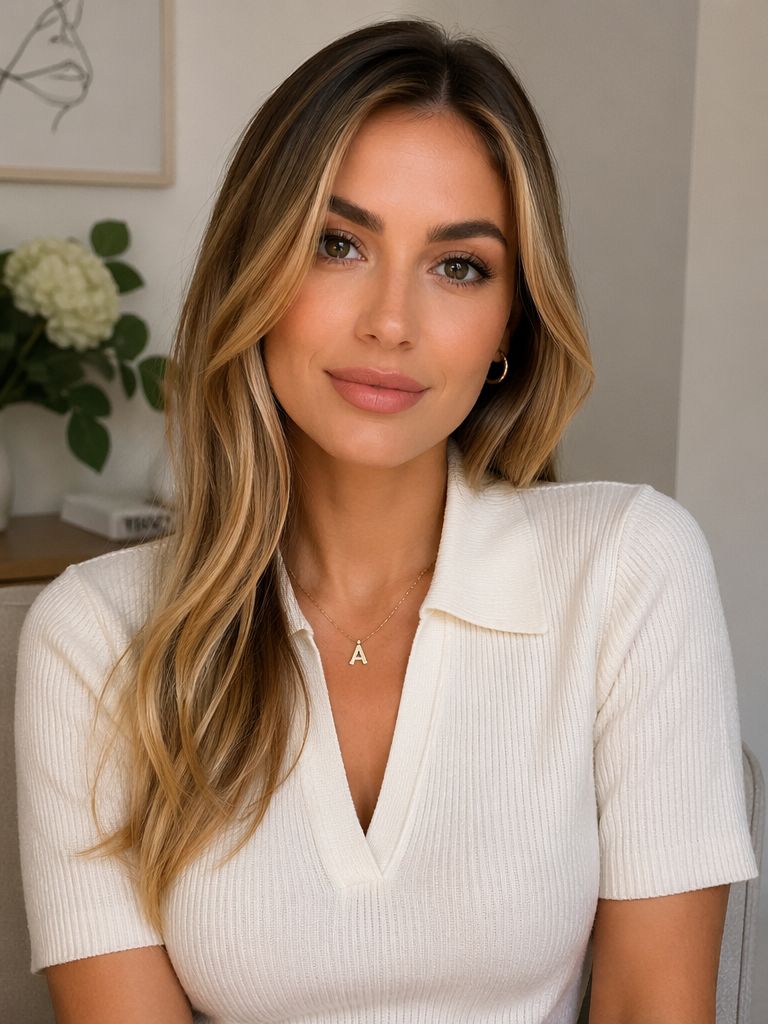
- Choose Image 1 for the lead. Use a clear, well-lit reference that shows the person's defining appearance.
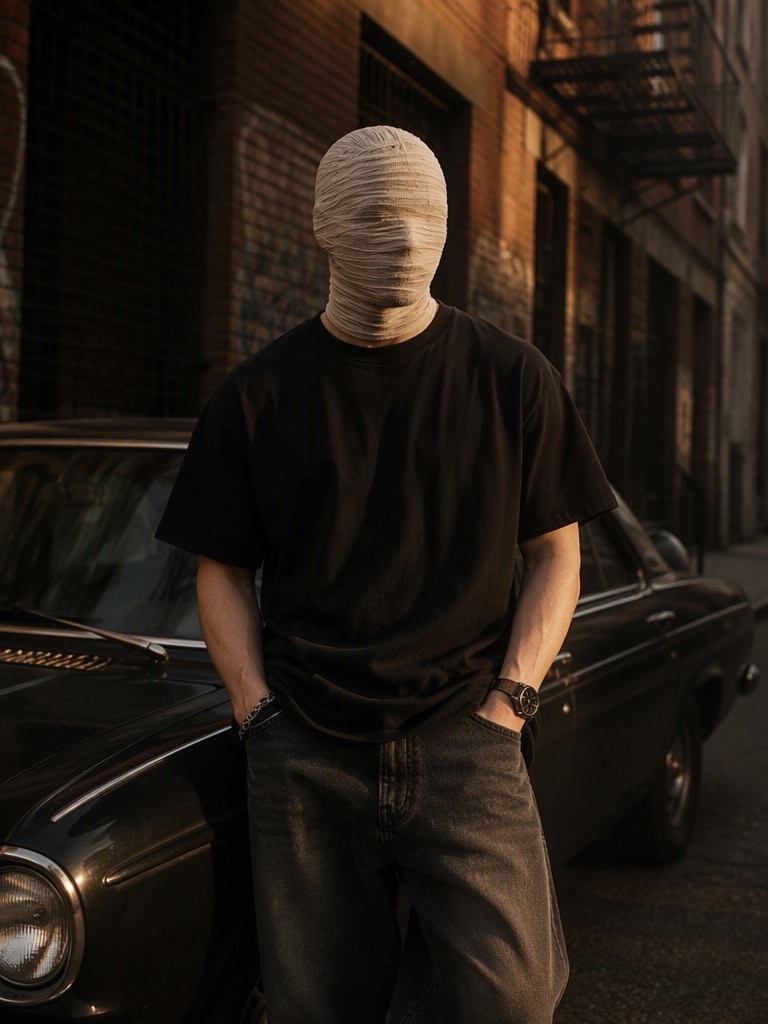
- Choose Image 2 for everyone else. A full-body character image on a simple background helps show the costume and proportions.
- Work with images and footage you are allowed to use. Avoid celebrity impersonation and unlicensed costume branding.
Recast the lead in @Video1 using @Image1. Maintain that appearance throughout the performance, including hair, clothing and proportions. Follow the original acting and dance timing. There must be one lead only; disregard the photo's background.
Use @Image2 as the appearance of every non-lead dancer in @Video1, even when distant, obscured or blurred. Preserve their individual positions, spacing and interactions. Keep the ensemble design consistent without multiplying the lead or retaining any original supporting faces.
A clear, front-facing full-body reference makes the face, outfit and proportions easier to distinguish.
Step 2Create My Dance Edit
Apply Your Characters to the Dance
- Open the video editor and use the reference-video editing workflow.
- Load the dance clip, followed by Image 1 for the lead and Image 2 for the supporting cast.
- Make the source footage responsible for the movement, timing, shot changes, framing, focus and camera path.
- Paste the complete prompt below, adjust the character instructions as needed, and generate an edit to review before downloading.
Edit @Video1 as a cast replacement, not a new performance. Assign @Image1 exclusively to the single lead and @Image2 to every other dancer, including obscured figures. Maintain both designs without blending identities. The footage determines all actions, timing, body scale, crowd geometry, overlaps, edits, duration, framing, focus and camera travel. Retain the setting and lighting; disregard both photo backgrounds. Do not add, remove or reposition performers, change costumes, introduce shots, widen the view or alter choreography. Keep anatomy, contact and continuity natural, without flicker, captions, branding or watermarks.
If faces or outfits change during the edit, try a shorter reference clip and a simpler supporting-character design.
Step 3
Check the Details and Share
- Review the lead's appearance, the ensemble's outfits, touching hands and grounded feet. Look for changes between frames.
- Share the finished edit on TikTok, Instagram Reels or YouTube Shorts.
- Choose audio you have permission to publish and add relevant tags, such as #stormiitrend, #aicrowddance and #aivideo.
- Try a before-and-after post that shows the dance reference, your two character images and the finished cast replacement.
Make the opening easy to recognize, then let the coordinated crowd reveal become the moment viewers remember.
Social Media Showcase
Explore sky-fall, walking-transition and Minecraft scene examples.
Create a Crowd Dance with Your Own Cast
A Lead That Looks Like You
Give the central performer your chosen face, hair and wardrobe while following the reference performance.
A Unified Supporting Cast
Use a shared character design for the dancers throughout the scene.
Coordinated Ensemble Movement
Keep the group’s gestures, formations and rhythm connected to the original clip.
Camera Movement from the Reference
Follow the source camera’s framing, cuts and reveal instead of describing every shot separately.
Questions About STORM II Crowd Dance Edits
What inspired this crowd dance?
The ensemble choreography in GENER8ION and Yung Lean’s STORM II visual inspired creators to remake the scene with a new central character and matching supporting dancers.
How do I create my own version?
Start with a dance clip, add your character references, then describe which performers each image should replace. Review the generated edit before sharing it.
What belongs in the editing prompt?
Identify the lead and supporting references separately, then specify which movements, positions and camera actions should follow the video.
Can I change the entire ensemble?
Give the main performer one identity reference and the remaining dancers another. Describe the crowd assignment explicitly so it includes distant and partially hidden people.
Why begin with a reference clip?
A video supplies the timing, choreography and camera path together. A written description alone may produce a different sequence.
How can I keep faces and costumes stable?
Use sharp references with clearly visible faces and clothing. A shorter clip and a less elaborate supporting character can make the edit easier to control.
Can I use the original soundtrack?
Publishing music requires permission from its rights holders or a suitable platform licence. Choose audio you are entitled to use.